Türkçe
 English
 فارسی
 Русский
 Defne
Quick Summary – RDS CALs and License Selection
An RDS CAL is an additional access license assigned to a user or device accessing Windows Server Remote Desktop Services. Under the standard internal-use CAL model, it does not replace the Windows Server license or a Windows Server CAL.
- Separate Licensing Layers — Assess the required rights for the server operating system, Windows Server access, RDS access, and applications separately.
- User or Device — In the hypothetical setup with 12 employees and 4 shared computers, the RDS layer requires 12 User CALs or 4 Device CALs if access is exclusively from those devices.
- Not Concurrent Licensing — A maximum of 4 simultaneous sessions does not mean that 4 User CALs cover 12 distinct users.
- Version Compatibility Check — A Windows Server 2025 Session Host requires 2025 RDS CALs, and the license server hosting the CAL pack must also run a compatible version.
- Technical Grace Period — The 120-day RDS grace period should not be interpreted as free production-use rights or an exemption from access licensing.
- Rental Agreement Matters — Do not assume your VPS fee includes RDS access; obtain written confirmation of the provider's licensing program and any applicable RDS SAL terms under SPLA.
Four people connecting simultaneously does not mean four user licenses are enough. An RDS CAL is an additional license for a user or device accessing Windows Server Remote Desktop Services; it does not replace the server license. For a hypothetical 12 employees sharing 4 computers, the choice depends on user and device coverage, not concurrent sessions.
Table of Contents
- Which Licenses Are Required for Four Remote Desktop Sessions?
- User CAL vs Device CAL: How Shift Work Changes the Decision
- Version Compatibility and Licensing Boundaries on Rented Servers
- Inventory Roles and Access Before Configuration
- Activate the License Server and Configure the Session Host
- The 120-Day Grace Period and a Licensing Troubleshooting Order
- Clarify the Cost Breakdown Before Requesting a Quote
- Clarify the Cost Breakdown Before Requesting a Quote
- Frequently Asked Questions
- Sources
Which Licenses Are Required for Four Remote Desktop Sessions?
Four open sessions do not mean four user licenses are enough. I count users or devices, not simultaneous connections. Shifts change nothing: when twelve employees share four computers, signing out does not automatically transfer an assigned CAL to the next person.
This entirely hypothetical lab has no internet exposure and represents neither a customer deployment nor a completed test. Twelve separate domain users connect from pc01-pc04, running Windows 11 Pro 24H2, with at most four simultaneous sessions. All servers run Windows Server 2025 Standard, Desktop Experience. In ad.example.com, ad01.ad.example.com provides AD DS and DNS, rdsh01.ad.example.com is the RD Session Host, and lic01.ad.example.com provides RD Licensing. All machines belong to the domain.
What is an RDS CAL? An additional client access license assigned to a user or device for Remote Desktop Services. Microsoft Learn’s RDS CAL documentation requires an appropriate RDS CAL for each user or device connecting to an RD Session Host. It is not a concurrent-connection license. Windows Server RDS licensing has three layers:
- Windows Server license: Permits running the server operating system. Core licensing and virtualization rights need separate assessment; RDS CALs cannot replace it.
- Windows Server CAL: Covers underlying user or device access to Windows Server services. Windows 11 Pro on the client does not remove this requirement.
- RDS CAL: Required in addition to the Windows Server CAL for employee remote desktops or applications. It does not cover the other layers.
For the access described, device licensing across both CAL layers requires four Windows Server 2025 Device CALs and four Windows Server 2025 RDS Device CALs. User licensing across both requires twelve Windows Server 2025 User CALs and twelve Windows Server 2025 RDS User CALs. Server operating system licenses remain separate.
The exception for up to two remote administration sessions covers server administration only, not free employee desktops or applications. Do not subtract two employee sessions by calling them administrative connections.
User CAL vs Device CAL: How Shift Work Changes the Decision
Four open sessions do not mean four User CALs. Counting only active connections understates the requirement for twelve employees working shifts. I would count people and devices separately: what matters is which receives the access entitlement, not how many sessions are open.
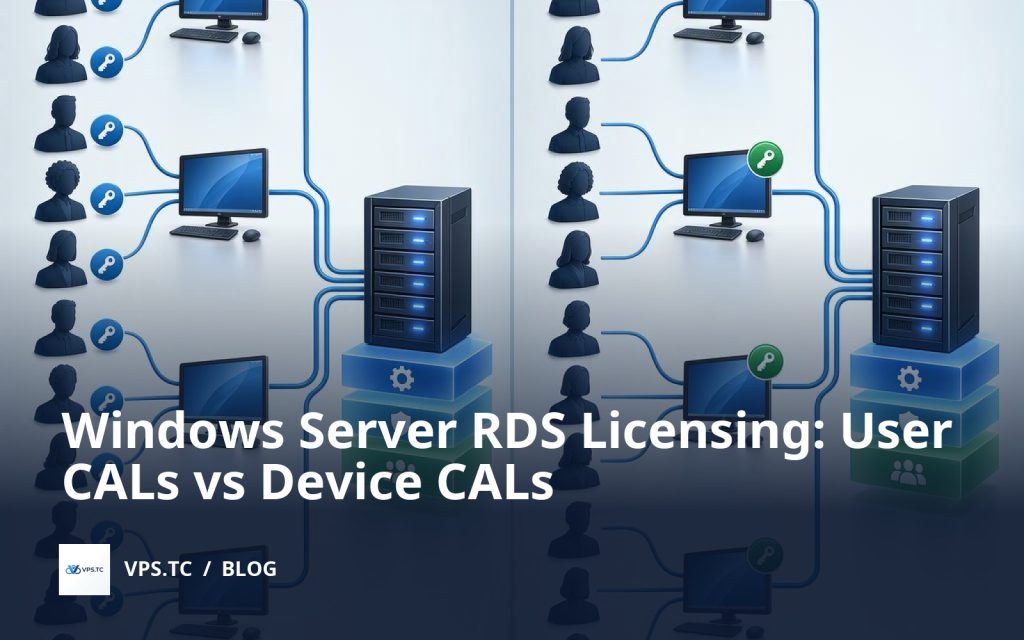
Microsoft Learn’s RDS CAL documentation explains that Per User lets a licensed user access an RD Session Host from multiple devices. Per Device lets multiple users share a licensed device. Neither is a concurrent-session pool. The distinction matters.
In this entirely hypothetical lab, with no internet exposure, servers run Windows Server 2025 Standard, Desktop Experience; clients run Windows 11 Pro 24H2. All machines belong to ad.example.com. Twelve distinct domain users will connect to rdsh01.ad.example.com from four shared clients, pc01–pc04, across shifts. Four simultaneous sessions is the expected maximum-a capacity assumption, not a measured test result.
| RDS licensing model | Assignment unit | Lab requirement |
|---|---|---|
| Per User | Each distinct accessing user | 12 RDS User CALs |
| Per Device | Each distinct access device | 4 RDS Device CALs |
These counts cover only the RDS layer. Microsoft Learn states that RDS CALs are additional to Windows Server CALs; they do not replace base server access licenses. Sharing four computers across shifts favors Device CALs here: twelve people, four access devices.
If those twelve people need access from other devices, the calculation changes. Under Per User, device variety alone does not increase the user-license count. Under Per Device, additional access devices need licensing too; the existing four licenses do not automatically cover them.
Microsoft Learn places responsibility for sufficient Per User licenses on the administrator. A successful connection does not prove compliance. Count people and devices that will receive access rights, rather than trusting the active-session screen.
Signing out after a shift does not free a license for unrestricted reassignment to another employee. Check reassignment periods, exceptions, and conditions in your applicable licensing agreement. Before choosing, I would settle one question: does anyone need access from beyond those four shared computers?
Example
In the entirely hypothetical lab, 12 employees work in shifts using only the 4 shared computers named pc01-pc04. The RDS comparison is 12 User CALs versus 4 Device CALs; Windows Server CAL requirements are assessed separately. If employees also connect from home computers, device coverage must be recalculated.
Version Compatibility and Licensing Boundaries on Rented Servers
Owning RDS CALs does not automatically cover access after a server upgrade. Version matters. Microsoft Learn’s RDS client access license documentation says older CALs cannot cover newer RD Session Hosts; newer CALs can cover older hosts. I check access licensing separately when planning upgrades.
In this entirely hypothetical, non-internet-facing lab, rdsh01.ad.example.com runs Windows Server 2025 Standard, Desktop Experience. Windows Server 2022 RDS CALs are insufficient; Windows Server 2025 RDS CALs are required. Conversely, 2025 RDS CALs can cover a Windows Server 2022 Session Host. When comparing Windows Server 2025 vs 2022, separate licensing dependencies from operating-system features.
Check the RD Licensing server’s version independently. According to Microsoft Learn’s compatibility table, a Windows Server 2025 RDS CAL pack cannot be installed on a Windows Server 2022 license server. The lab’s lic01.ad.example.com runs Windows Server 2025 Standard, Desktop Experience, so the planned pairing is compatible. That assessment comes from documentation, not an installation or test.
Windows 11 Pro 24H2 clients change neither check. Twelve users sharing four devices across shifts do not become four licensed users because at most four concurrent sessions are expected. Version, type, and quantity remain separate questions.
A VPS invoice does not establish access rights
Internal organizational CAL licensing differs from the RDS SAL model a provider may offer under SPLA. SAL means Subscriber Access License, not an existing CAL renamed. A VPS price including Windows Server usage does not automatically include RDS access; verify the package separately.
Do not assume your CALs transfer to every provider. Acquisition program, Software Assurance or subscription coverage, hosting arrangement, and provider status can affect rights. Check Microsoft Learn’s compatibility tables, current Microsoft Product Terms for usage and outsourcing rights, and applicable SPLA/SPUR terms for provider services.
Technical compatibility alone does not establish contractual entitlement. I would ask for the rental agreement to identify the RDS access licensing model, included charges, and each party’s licensing responsibilities in writing.
Caution
An operating system license included with a rented Windows server does not mean RDS access rights are included. Do not assume you can use your existing CALs in every provider's environment. Verify the applicable rights against Microsoft Product Terms, the relevant SPLA/SPUR terms, and the provider's written quote.
Inventory Roles and Access Before Configuration
I start by checking the target. Wrong server, wrong result. This entirely hypothetical lab has no internet exposure or customer experience. Three servers run Windows Server 2025 Standard, Desktop Experience; four clients run Windows 11 Pro 24H2. All belong to ad.example.com, with administrative privileges, DNS resolution, and time synchronization assumed working.
ad01.ad.example.com–192.0.2.10: AD DS and DNS provide domain authentication and name resolution.rdsh01.ad.example.com–192.0.2.20: intended RD Session Host, hosting users’ desktops and applications.lic01.ad.example.com–192.0.2.30: intended RD Licensing server, providing licensing, not desktops.
Microsoft Learn’s RDS CAL documentation describes license issuance and tracking; its activation instructions distinguish role installation from activation. An installed role proves neither activation nor installed CAL packs.
Plan to run this locally on each server in elevated Windows PowerShell 5.1. It queries built-in roles without installing them; only directory creation and file writing change anything.
New-Item -Path 'C:\RDS-Lab' -ItemType Directory -Force | Out-Null

$inventory = & {
    '--- Hedef sunucu ---'
    hostname

    '--- Isletim sistemi ve etki alani ---'
    Get-ComputerInfo -Property CsName,CsDomain,OsName,OsVersion,OsBuildNumber,WindowsInstallationType |
        Format-List | Out-String

    '--- Rol durumu ---'
    Get-WindowsFeature -Name AD-Domain-Services,DNS,RDS-RD-Server,RDS-Licensing |
        Select-Object Name,InstallState |
        Format-Table -AutoSize | Out-String
}

$inventory | Out-File -FilePath 'C:\RDS-Lab\inventory.txt' -Encoding utf8
Get-Content -Path 'C:\RDS-Lab\inventory.txt'
The commands collect server identity, OS details, and role status, overwrite each server’s C:\RDS-Lab\inventory.txt, then display it. Hypothetical expected output: hostname returns the short name; CsDomain shows ad.example.com. RDS roles may show Available before installation and Installed afterward on their intended targets. These are not measured results. Later diagnostics go in C:\RDS-Lab\diagnostics.txt; this example does not create it.
Inventory shared clients pc01-pc04 at 192.0.2.101-192.0.2.104, respectively. Twelve distinct domain users work shifts, with at most four simultaneous sessions expected. CAL counting is not concurrent-session counting. example.com and 192.0.2.0/24 are reserved for documentation; replace them with your organization’s domain and suitable private addresses in real deployments.
Without Connection Broker, this is not a full RDS collection deployment. RD Web Access, RD Gateway, high availability, and internet access are outside scope. Domain GPO will specify the license server and licensing mode for the single Session Host. I would not copy this architecture directly into production: design access paths and role separation for your production requirements.
Activate the License Server and Configure the Session Host
Activation does not buy CALs. I keep those steps separate: Microsoft Learn distinguishes role installation, server activation, and purchased CAL installation. In this hypothetical lab, lic01.ad.example.com handles licensing; rdsh01.ad.example.com accepts sessions. These examples are not test records.
On lic01.ad.example.com, running Windows Server 2025 Standard, Desktop Experience, open Windows PowerShell 5.1 as administrator. Install the role and management tools:
Install-WindowsFeature -Name RDS-Licensing -IncludeManagementToolsExpect Success to show True; check Restart Needed too. This command neither activates the server nor installs CALs.
Activation and the purchased pack
In Server Manager, open Tools, Remote Desktop Services, then Remote Desktop Licensing Manager. Right-click the server and select Activate Server. Microsoft Learn describes automatic connection, web browser, and telephone methods. No public exposure does not mean no outbound connectivity; choose according to available access.
Next, select your purchasing program in Install Licenses. Enter only details from legitimate purchase documents. Use a Windows Server 2025 RDS Device CAL pack here. Microsoft’s CAL guidance means four Device CALs for four shared clients-not a concurrency allowance because twelve users run at most four simultaneous sessions.
Point the Session Host at its license server
In domain Group Policy Management, edit a GPO linked to the OU containing rdsh01.ad.example.com. Verify the computer account has Read and Apply Group Policy permissions. Follow this exact path:
Computer Configuration > Policies > Administrative Templates > Windows Components > Remote Desktop Services > Remote Desktop Session Host > Licensing
- Use the specified Remote Desktop license servers: Enabled; enter
lic01.ad.example.com. - Set the Remote Desktop licensing mode: Enabled; select Per Device.
With no Connection Broker, the GPO specifies both settings. Run in elevated PowerShell on the Session Host:
New-Item -Path 'C:\RDS-Lab' -ItemType Directory -Force | Out-Null
gpupdate /target:computer /force
gpresult /scope computer /z | Out-File -FilePath 'C:\RDS-Lab\diagnostics.txt' -Encoding utf8
The first command prepares the directory. Expect gpupdate to report successful computer-policy updating; the final command saves the gpresult report to C:\RDS-Lab\diagnostics.txt. Check the applied GPO and licensing settings there. Policy application does not prove CAL issuance: check license-server reachability and configuration warnings separately in RD Licensing Diagnoser.
Tip
In the hypothetical design without a Connection Broker, the domain GPO applied to rdsh01 specifies lic01.ad.example.com as the license server and Per Device as the licensing mode. Use gpresult to verify that the settings actually apply; activating the license server is not the same as purchasing or installing CALs.
The 120-Day Grace Period and a Licensing Troubleshooting Order
A successful login does not prove licensing is complete. Microsoft Learn describes RD Session Host’s 120-day technical grace period without a license server. It grants no free production entitlement; contractual obligations remain. After expiry, fix licensing-not the timer-and do not bypass enforcement.
In this hypothetical lab, open lsdiag.msc (RD Licensing Diagnoser) on rdsh01.ad.example.com. Connection Broker is outside scope; domain GPO specifies this single Session Host’s license server and mode. I would check:
- Mode: Compare Diagnoser’s Per User or Per Device value with purchased CALs. Trust the applied setting, not the GPO editor’s selection.
- Discovery: Confirm Diagnoser sees
lic01.ad.example.com. Otherwise, check resultant policy, DNS resolution, then network access. - Compatibility: Microsoft Learn’s table rules out 2022 RDS CALs for a Windows Server 2025 Session Host. Check for a 2025 pack.
- Available CALs: In RD Licensing Manager, inspect activation, installed pack type, usage, and available Per Device licenses. Microsoft’s activation documentation separates CAL installation from activation. Activation alone is insufficient.
This untested example uses elevated Windows PowerShell 5.1 on rdsh01.ad.example.com, running Windows Server 2025 Standard, Desktop Experience. It appends a Turkish label meaning “hypothetical lab-not a real customer environment,” a timestamp, and diagnostics to the file.
New-Item -Path 'C:\RDS-Lab' -ItemType Directory -Force | Out-Null
& {
    'VARSAYIMSAL LABORATUVAR - gerçek müşteri ortamı değildir.'
    Get-Date -Format o
    Resolve-DnsName -Name 'lic01.ad.example.com' -Type A -Server '192.0.2.10'
    Test-NetConnection -ComputerName 'lic01.ad.example.com' -Port 135
    gpresult.exe /scope computer /z
} 2>&1 | Out-File -FilePath 'C:\RDS-Lab\diagnostics.txt' -Encoding utf8 -Append
DNS queries target ad01.ad.example.com; expect A record 192.0.2.30. TcpTestSucceeded : True confirms only TCP 135 access, not complete dynamic RPC connectivity. Keep the firewall enabled. Inspect gpresult for applied computer policies and licensing settings; if missing, check GPO linking, scope, and filtering.
Microsoft Learn states that Per User counts are not technically enforced: tracking does not guarantee underlicensed access gets blocked. Obligations remain. Count twelve distinct accessing users here, not four concurrent sessions. Compare C:\RDS-Lab\diagnostics.txt with the planned inventory in C:\RDS-Lab\inventory.txt to resolve mode, pack, and user-count discrepancies.
Caution
Use RD Licensing Diagnoser to check the licensing mode, specified server, and CAL compatibility. A successful TCP 135 connection test with Test-NetConnection does not prove that all required dynamic RPC communication works. Resolve the licensing and connectivity problem rather than resetting the 120-day period.
Clarify the Cost Breakdown Before Requesting a Quote
“Windows server” on a quote does not mean every remote desktop right is included. I would separate the costs before comparing offers. Running the operating system, accessing the server, using RDS, and running applications within sessions require distinct rights. None replaces another.
In this entirely hypothetical, non-internet-facing lab, servers run Windows Server 2025 Standard, Desktop Experience; four shared clients run Windows 11 Pro 24H2. Twelve users in ad.example.com work shifts on pc01–pc04. Microsoft Learn’s RDS CAL documentation explains that User CALs are assigned to users and Device CALs to devices. A maximum of four concurrent sessions does not mean four User CALs suffice.
| Cost item | Scope to separate |
|---|---|
| Server OS or rental | Rights to run Windows Server, infrastructure charges, and additional services |
| Windows Server access rights | Windows Server CALs or access rights covered by the provider’s contract under the applicable licensing program |
| RDS access rights | Twelve User CALs versus four Device CALs |
| Application licenses | Remote-session rights for Microsoft 365 Apps and other software |
For the same version, licensing program, and purchase terms, let U represent the RDS User CAL unit price and D the Device CAL unit price. Compare 12 × U with 4 × D. These are symbolic amounts, not market prices. The Device CAL option costs less for the RDS line item only when 4 × D < 12 × U. Use a common evaluation period when comparing perpetual license costs with monthly service charges.
Assess Windows Server CALs separately. Choosing device-based RDS licensing does not determine the number or type of underlying server access rights. Include users and devices accessing other services, such as file shares, in your inventory. Do not assume retail CAL calculations apply unchanged to a rental provider’s licensing program.
Windows Server core licensing costs cannot be calculated from VM count alone. Physical cores, virtualization rights, and contract-permitted licensing methods affect the calculation; per-VM licensing also has eligibility conditions.
Ask the provider for written, itemized confirmation of the product version, licensing program, user or device coverage, recurring charges, and remote-session rights for applications such as Microsoft 365 Apps.
Clarify the Cost Breakdown Before Requesting a Quote
- Count all users and devices that need access; record the concurrent session count separately.
- Compare User CAL and Device CAL coverage against shared-device, personal-computer, and work-from-home access patterns.
- Separate the Windows Server license, Windows Server access rights, RDS access rights, and application licenses into distinct cost items.
- Verify compatibility between the Session Host version, RDS CAL version, and license server version.
- Check RD Licensing activation, the purchased CAL pack, and the licensing GPO applied to the Session Host.
- Obtain written confirmation of the rented server's licensing program, CAL or SAL coverage, and conditions for using existing licenses.
- Specify the product version, user or device count, billing period, and remote-session rights for applications such as Microsoft 365 Apps in the quote.
Include your total user count, access devices, and required applications when requesting a quote. Ask the provider to list Windows Server, RDS, and application rights separately, alongside the licensing program and billing period.
Frequently Asked Questions
What is an RDS CAL, and how does it differ from a Windows Server CAL?
An RDS CAL is an additional user or device license for accessing Windows Server Remote Desktop Services. Under the standard internal-use licensing model, a Windows Server CAL covers basic server access, while an RDS CAL covers RDS use; the server operating system is licensed separately. Buying only RDS CALs therefore does not cover every licensing layer. Service-provider agreements may use a different access-licensing model.
How many RDS CALs are needed for 12 users connecting from 4 computers?
In the hypothetical scenario, if 12 distinct employees use only 4 shared computers, the RDS options are 12 User CALs or 4 Device CALs. A maximum of 4 simultaneous sessions does not reduce the User CAL requirement to 4. With Device CALs, every device used for access must be covered; additional laptops or home computers change the count. Windows Server CAL requirements must be assessed separately.
Can the two Windows Server remote administration sessions replace RDS CALs?
No. The allowance for up to two remote administration sessions is specifically for managing the server; it is not a free RDS alternative for delivering employees' everyday applications or desktops. Keeping the user count at two does not turn ordinary business use into server administration. Plan an appropriate RDS deployment and licensing rights when employees will connect to run applications.
Can Windows Server 2022 RDS CALs be used with Windows Server 2025?
Windows Server 2022 RDS CALs do not grant access to a Windows Server 2025 Session Host; that host requires 2025 RDS CALs. Newer RDS CAL versions can provide access to older Session Host versions. Compatibility of the RD Licensing server hosting the CAL pack is a separate check: use a Windows Server 2025 license server for Windows Server 2025 RDS CAL packs.
Does the 120-day RDS grace period provide free usage rights?
The 120-day grace period is a technical startup period during which RDS can allow connections without obtaining CALs from a license server; it does not grant free production-use rights or remove contractual licensing obligations. Obtain the appropriate licenses and verify the license server and Session Host settings before it expires. Technical enforcement in Per User mode allowing a connection does not make underlicensed use compliant.
Does a Windows VPS rental fee include RDS licensing?
That depends on the provider's quote and licensing program; including the Windows operating system fee does not establish that RDS access is included. A provider may offer RDS SALs under SPLA, which should not be treated as equivalent to an internal-use CAL calculation. Ask for written confirmation of user coverage, billing periods, existing-license eligibility, and application rights. Verify remote-session rights for products such as Microsoft 365 Apps separately.
Sources
- Microsoft Learn – RDS CAL Types, Grace Period, and Version Compatibility — learn.microsoft.com
- Microsoft Learn – Activate a Remote Desktop License Server — learn.microsoft.com
- Microsoft Learn – Documentation Portal for RD Session Host Licensing Configuration — learn.microsoft.com